First, the part I want to be clear about. Everything here is for footage you have the right to edit: your own recordings, licensed stock you've paid for, or a logo or overlay you added yourself and now want gone. Concretely, the situations I'm talking about are things like: I exported a clip with my old channel logo and rebranded; I licensed B-roll that ships with a sample watermark and I have the paid, watermark-free rights; or a client sent footage with a placeholder bug burned in. It's not about stripping watermarks off other people's copyrighted content — that's not what I'm doing, and not what I'd recommend. If you don't have the rights, don't.
With that said: the hard part I kept hitting was removing a watermark without leaving a mark of its own. A blurred rectangle where the logo used to be is almost as obvious as the watermark itself — arguably worse, because it screams "something was removed here." What actually solved it was AI inpainting: rebuilding the pixels behind the watermark, frame by frame, so the area looks like the rest of the scene.
 HitPaw
 VEED
VEED Kapwing
 Media.io
 Vmake
Vmake AVCLabs
Blur/crop vs. AI inpainting
Once I started comparing tools, I realized they "remove" a watermark in three different ways — and only one kept the quality:
- Crop — cut off the edge with the watermark. This only works if the watermark sits in a corner you don't need, and you pay for it by losing framing and effective resolution. For a centered or large watermark it's useless.
- Blur / pixelate — smear the area so the logo is unreadable. The watermark is "gone," but the smudge gives it away, and on moving footage the blurred patch swims around distractingly.
- AI inpainting — detect the watermark region and reconstruct the background underneath using the surrounding pixels and, on video, the same area from nearby frames. When it worked, I genuinely couldn't tell anything had been there.
For a clean result on a moving subject, inpainting was the only thing that held up — especially for a logo sitting over detailed footage rather than a flat corner.
Static vs. moving watermarks (this changes everything)
Not all watermarks are equally hard, and knowing which kind you have sets expectations:
- Static corner logo over a moving scene. This is the easiest case for inpainting on video — because the scene behind the logo changes frame to frame, the tool can often borrow real background from adjacent frames. Results here can be near-perfect.
- Static logo over a static shot. Harder, because there's no "clean" version of those pixels in any frame. The tool has to invent plausible background. Flat or simple backgrounds reconstruct well; busy detail behind the logo is where it gets tricky.
- Animated / moving watermark. A bug that drifts, pulses, or repositions needs the tool to track it. Some tools handle this with motion tracking; others smear.
- Large or semi-transparent watermark. A faint full-frame watermark tinting the whole image is the worst case — there's no clean region to rebuild from, and most tools only partially recover it.
I always set my expectations by which of these I'm dealing with before judging a tool's output. If you're not sure which kind your app leaves, I keep a table of where 21 video apps and AI generators put theirs.
2026 comparison: video watermark removers
| Tool | Method | Free tier | Watermark on free output? | Notes |
|---|---|---|---|---|
| HitPaw | AI inpainting + manual fill | Trial only | Yes (online tool) | Strong desktop app; Windows/macOS install |
| VEED | Crop or cover (no AI fill on video) | 720p | Yes (VEED logo) | VEED's own guide: crop the edge or cover the mark |
| Kapwing | Crop or cover; its AI removers are image-only | 720p, ~4 min | Yes (Kapwing logo) | Collaboration-focused editor |
| Media.io | AI inpainting (markets "not blur") | Daily credits, 720p | Yes | Region-localized pricing; credit packs |
| Vmake | AI inpainting + brush + protect zones | 20 credits/day, up to 720p, first 5s free | Yes | Paid plans unlock 1080p–4K |
| AVCLabs | AI inpainting | Free online, files under 100 MB | Not stated | Desktop app for more precise removal |
| remover.work | AI removal hub | First 5s, full resolution, no watermark | No | Pay-as-you-go credits; no install |
Checked in October 2026 against each vendor's own pricing and help pages. "Not stated" means the vendor doesn't publish it.
Here's how they actually felt in use:
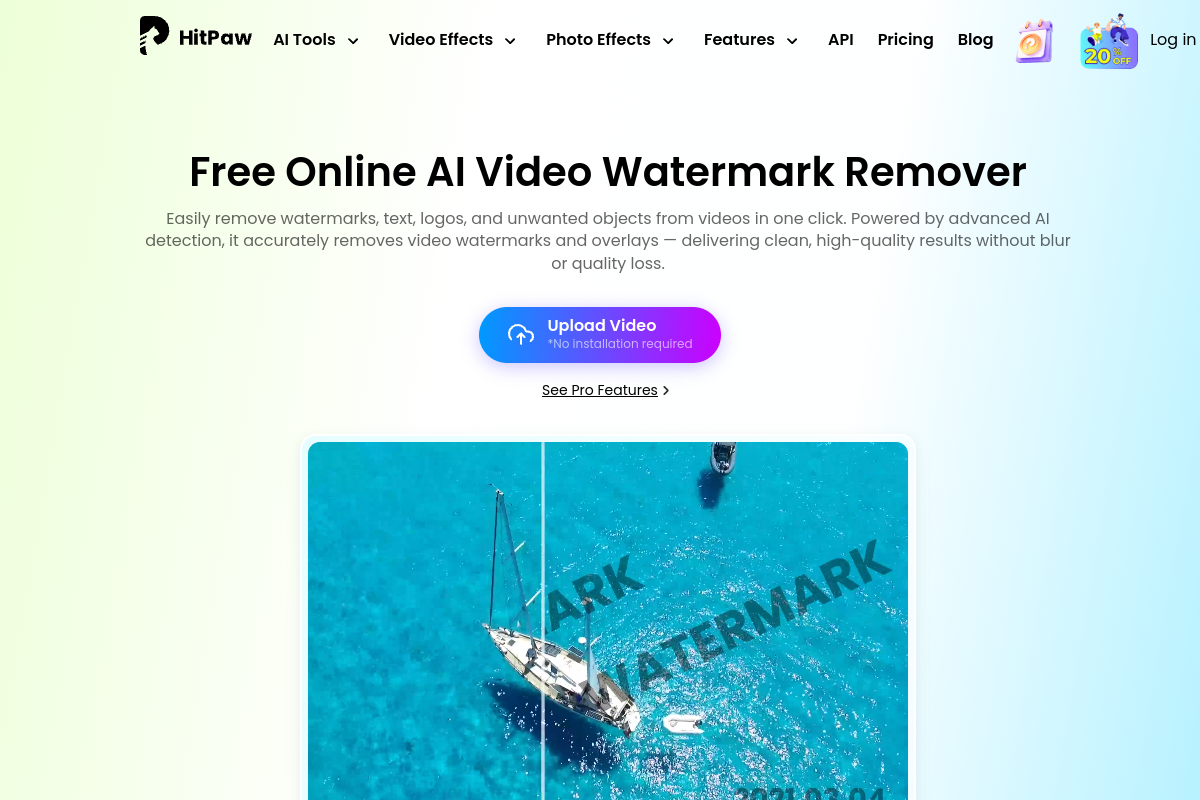
HitPaw has a genuinely capable desktop app with both automatic detection and manual fill brushes, which helped on tricky moving logos. The friction is that the strong version is a Windows/macOS install on a trial, and the online tool watermarks the free export, so you're committing before you know if it solves your clip.
VEED and Kapwing are full online editors, but neither removes a watermark from video with AI. VEED's own guide says to crop the edge out of frame or cover the mark with a sticker or your own logo, and Kapwing's AI watermark and text removers work on images only. Both also watermark the free export — so to get rid of someone's watermark for free, you'd be adding theirs.
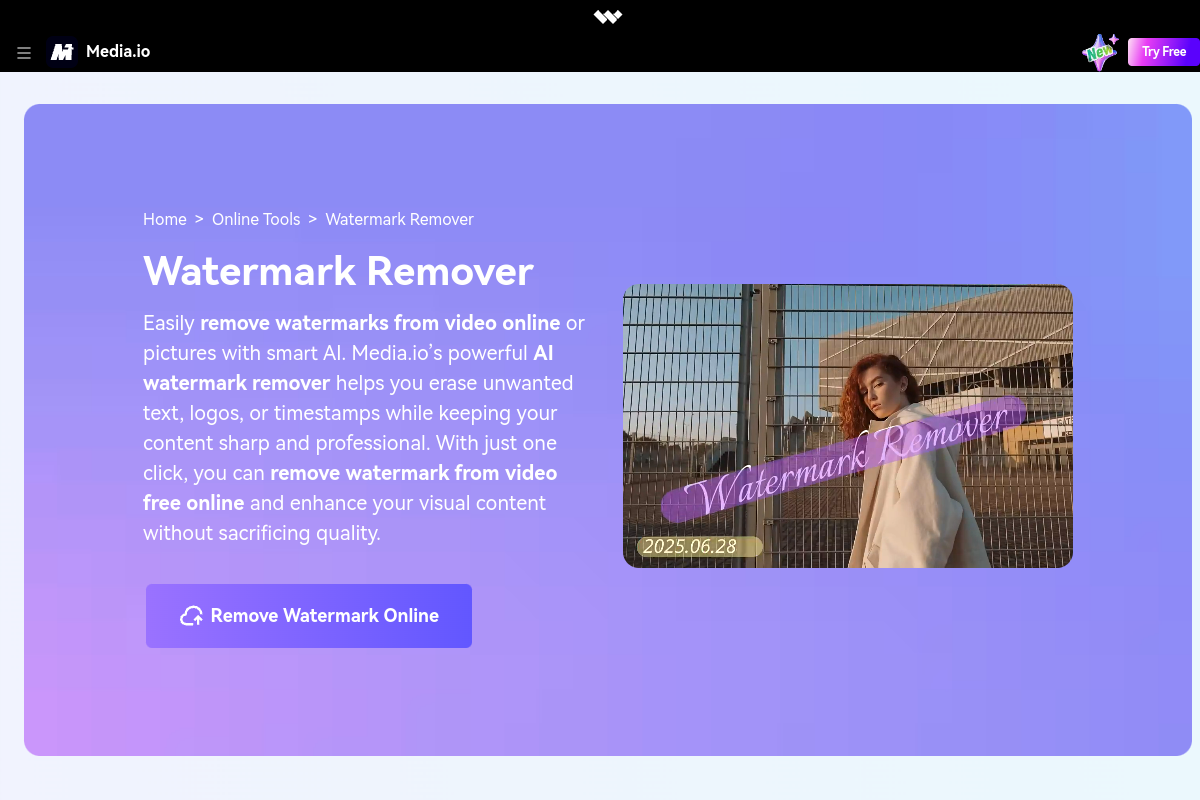
Media.io explicitly markets "AI removal, not blur," and that's the right framing — it reconstructs rather than smears. But the free tier runs on daily credits at 720p with a watermark, and the pricing is region-localized, so the number you see depends on where you are.
Vmake is flexible (brush plus "protect zones" to stop it touching areas you want kept), and the free tier gives you 20 credits a day at up to 720p. What I found hard was predicting what a full job would cost in credits before running it.
AVCLabs offers a free online remover for files under 100 MB, and points you to its desktop app for more precise removal. Fine for small clips.
The traps I kept running into: the free output is watermarked on most browser tools (VEED, Kapwing, Media.io, Vmake), the strongest versions are desktop installs (HitPaw, AVCLabs), and the credit pricing is often hard to read before you commit (Vmake, Media.io). Limits move around, so confirm them on each vendor's page before trusting my notes.
My checklist before paying for any of them
- Is it inpainting or blur? I look at the preview at full size and scrub it. A soft patch that follows the old logo means blur, not reconstruction.
- Does the free export carry the tool's own watermark? Many do — I'd just be trading one mark for another.
- What resolution is the free output? 720p is common; my source was often 1080p or 4K, and downscaling defeats the purpose.
- Is it browser-based or an install? A web tool meant no download and no OS lock-in for me.
- Can I check it in motion? A watermark removal that looks fine on one frame can shimmer or smear once it's playing. I never judge from a still.
How I do it on remover.work
What I like is that remover.work treats watermark, logo, text and background removal as one workflow instead of six separate apps:
- I upload without an account and see the real reconstruction in the preview.
- The free result is the first 5 seconds at full resolution — no watermark, no downscaling — so I can judge the cut honestly, in motion, before deciding.
- I log in only to download, and spend credits only to process beyond the free 5 seconds — no subscription, so a one-off cleanup doesn't sign me up for a monthly plan.
I start from the tools hub, upload the clip, and check the preview before committing. And when the same footage also had burned-in captions, I handled those next — see how to remove subtitles from video.
What "just works" is actually running
Inpainting is only as good as the model doing the reconstruction, and that's where the real difference lives. remover.work runs a proprietary, state-of-the-art system built on diffusion transformers (DiT) — the same generative architecture behind modern video models, applied to removal:
- It rebuilds, it doesn't smear. A diffusion transformer generates plausible background to fill the watermark region, conditioned on the surrounding pixels — which is why the result is genuine reconstruction rather than the blur box cheaper tools leave behind.
- It uses time, not just space. Because the model reasons across frames, it can draw on real background revealed in nearby frames and keep the filled region consistent as the shot moves — so the patch doesn't swim, ghost, or flicker.
That's the engine behind "just works": a high-end generative model carrying the hard part of a clean, quality-preserving removal, while the interface stays a three-step upload-preview-export.
FAQ
Can I remove a TikTok or AI-generator watermark?
Only on content you have the rights to. Removing a platform or generator watermark from someone else's video isn't something I'd do or recommend — the techniques here are for your own footage and licensed material.
Will I lose quality?
Done with inpainting rather than blur, the rest of the frame is untouched and the reconstructed area blends in. Exporting at your source resolution (not a 720p downgrade) is the other half of keeping quality.
Corner logo vs. full-screen watermark — which is realistic?
A static corner logo over moving footage is the most reliable to remove. A faint full-frame watermark is the hardest and may only partially clear.
Does it work on a logo I added myself?
Yes — that's a textbook legitimate case. If you have the original project file, re-exporting without the logo is even cleaner; if you only have the flattened video, inpainting is the way.