The first time I tried to "remove subtitles," I picked a popular editor, ran the subtitle tool, exported — and the text was still sitting there in the lower third. That's when I learned "remove subtitles" is actually three different jobs wearing the same name, and most tools only do the easy one. Figure out which kind of subtitle you're looking at first, because it decides which tools can even help you.
 HitPaw
 Media.io
 AVCLabs
 Vmake
Vmake Kapwing
 VEED
VEEDThe three kinds of subtitles
This is the breakdown I wish I'd had on day one:
- Hardcoded (burned-in). The text is painted into the pixels — it's part of the image, with no separate layer. There's no "off" switch anywhere, because the words are the picture. Removing them cleanly needs AI inpainting: detect the text region per frame and rebuild the background behind it. This is the hard case, and the one I was stuck on. It's also the most common one, because exported and re-shared social clips almost always have the captions baked in.
- Soft subtitles (SRT / VTT / embedded track). A separate text stream stored alongside the video (a sidecar
.srtfile, or a track muxed into an.mkv/.mp4). "Removing" them is trivial — drop the track on re-export, or just don't load the file. No pixel reconstruction needed at all. - Platform captions. Auto-captions from YouTube, TikTok, or CapCut. While they're still a live overlay on the platform, they behave like soft subs and can be toggled. But the moment you download or re-export the video with them showing, they get baked into the pixels and become hardcoded.
How to tell which one you have
The quick test: open the clip in any player and look for a captions/CC toggle. If you can turn the text off, it's soft — your job is trivial. If the text stays on screen no matter what, it's hardcoded, and you need an inpainting tool. If you downloaded the clip from a platform and the captions are now stuck on, they were converted to hardcoded on export.
The trap that got me: tools like Kapwing and VEED rank well for "remove subtitles," but what they mostly manage is soft tracks and adding captions. My text was burned in, so those tools did nothing for it — I needed pixel-level inpainting.
2026 comparison: subtitle removers
| Tool | Removes hardcoded (burned-in)? | Free tier | Watermark on free? | Scope |
|---|---|---|---|---|
| HitPaw | Yes (AI inpainting) | Preview ~3×/day | Yes (online) | Object/text/watermark remover; desktop + online |
| Media.io | Yes (auto-detect, no blur) | Daily credits | Yes | Broad media suite |
| AVCLabs | Yes (incl. scrolling text) | Free online, files under 100 MB | Not stated | Text/subtitle/sticker remover |
| Vmake | Yes (fixed + animated subs) | 20 credits/day, up to 720p | Yes | Broad AI video suite |
| Kapwing | No — soft tracks only | Free tier | Yes | General editor |
| VEED | No (effectively) — built to add subs | Free tier | Yes | General editor |
| remover.work | Yes (AI removal hub) | First 5s, full resolution, no watermark | No | All-in-one removal hub |
Checked in October 2026 against each vendor's own pricing and help pages. "Not stated" means the vendor doesn't publish it.
What each felt like in practice:
HitPaw removes hardcoded captions, timestamps and text overlays through inpainting, with both auto-detection and manual modes. The desktop app is the strong version; the online tool gives a few free previews a day but watermarks the free export.
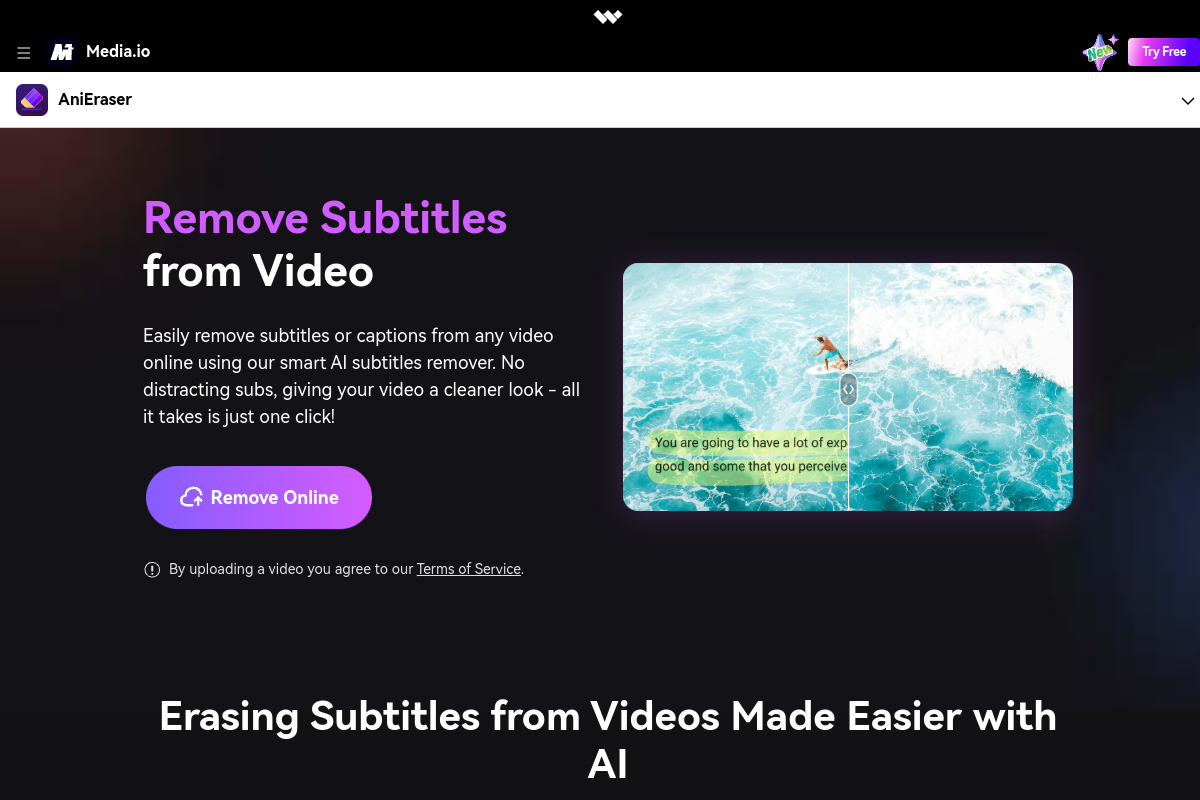
Media.io (its AniEraser tool) auto-detects subtitle bands and reconstructs the background rather than blurring — it explicitly markets "no blur," which matched what I saw. Free use runs on daily credits with a watermark.
AVCLabs handles not just static captions but scrolling and moving text, which is genuinely useful for news-style lower thirds. Its free online tool has a file-size cap.

Vmake removes both fixed and animated subtitles; the free tier gives you 20 credits a day, capped at 720p with a watermark.

Kapwing and VEED are the ones to skip for this specific job: they handle soft subtitle tracks and are built to add captions, not to inpaint burned-in text out of the pixels.
So once I knew my subtitles were burned in, my real choices narrowed to the inpainting tools — HitPaw, Media.io, AVCLabs, Vmake or remover.work — not the general editors. And most of those inpainting tools put their own watermark on the free export, capped it at 720p, or made me create an account before I could even see a clean result. Verify current limits on each vendor's site, since they change.

Why burned-in subtitles are genuinely hard
It's worth understanding what the tool is up against, because it sets expectations. For each frame, the model has to (1) find exactly where the text is, (2) figure out what should be behind it, and (3) paint that in so it's consistent with both the surrounding pixels and the next frame. Step 3 is the hard one: if the background behind the caption is a flat wall or gradient, reconstruction is nearly invisible; if it's a detailed, moving scene — a busy street, a patterned shirt — the tool is inventing detail, and that's where you might see slight blur or shimmer in the caption band. A still frame can look perfect while the playing video shimmers, which is exactly why I always preview in motion.
How I remove burned-in subtitles cleanly
- I confirm it's hardcoded. I try toggling captions in the player. If they won't turn off, they're burned in and I reach for an inpainting tool.
- I let AI auto-detect first. For centered captions with consistent size and position, automatic detection usually nails the region.
- I switch to a manual box when needed. Lower thirds, captions near a face, text near the frame edge, or dense short-form edits all benefit from drawing the region tighter than the auto-detect guess.
- I preview before exporting. I check the reconstructed band at full size and in motion — looking for ghosting, a smudge, or shimmer where the text used to be.
- I export at my source resolution. I won't accept a 720p downgrade when my video is 1080p or 4K.
I broke down the marking step in more detail in the subtitle removal tutorial.
How I do it on remover.work
- I upload without signing up and see the inpainted preview — no commitment needed to judge quality.
- The free result is the first 5 seconds at full resolution — no watermark, no downscaling — so I can verify the reconstruction honestly, in motion.
- I log in only to download, and use credits only to process beyond the free 5 seconds. No subscription.
I open the Subtitle Removal tool, upload the clip, and check the preview. And when the footage also carried a logo, the same hub handled watermark removal too.
What "just works" is actually running
Removing burned-in text cleanly is a reconstruction problem — and as the section above explains, reconstruction quality comes down to the model. remover.work runs a proprietary, state-of-the-art system built on diffusion transformers (DiT), the generative architecture behind modern video models:
- Frame-by-frame reconstruction with memory. The model regenerates the background behind the caption band per frame while reasoning across frames, so the rebuilt area stays consistent and doesn't shimmer as the video plays — the exact artifact that betrays a weak subtitle remover.
- Detail where it's hardest. Diffusion-based fill reconstructs busy, moving backgrounds behind the text far more convincingly than a smudge or a static copy-paste patch.
So the simple "mark it, preview it, export it" flow is sitting on top of a high-end generative model doing the genuinely hard part.
FAQ
Can it remove CapCut or 剪映 captions?
If they're baked into the exported video (hardcoded), yes — it's pixel-level inpainting like any other burned-in text. If you still have the editing project, deleting the caption layer there is cleaner.
What about scrolling or moving text?
Moving text needs the tool to track the region across frames. Some tools (AVCLabs, Vmake) advertise this specifically; results depend on how busy the background is.
My video has captions in two languages stacked — can both go?
Yes, as long as you mark both bands. With manual selection you can draw a region for each.
Will the rest of the video change?
No — inpainting only touches the caption region. The rest of the frame is left exactly as it was.