I'd already shot the video. There was no reshoot coming, no studio, no roll of green fabric pinned to the wall — just a clip on my drive and a need to get the background gone, so I could drop the subject onto a clean color, a virtual set, or a transparent layer for an edit. The good news I found: in 2026 you genuinely don't need a green screen. AI segmentation separates subject from background on ordinary footage, frame by frame. The thing nobody tells you up front is that most tools quietly limit the free output, and no two of them limit it the same way — which is where I lost an entire afternoon before I understood what was going on.
This is the write-up I wish I'd had: how the approach actually works, which footage cuts cleanly, how the major tools compare in 2026, and the workflow I settled on.
 Runway
 Kapwing
 VEED
VEED Pixelcut
 Canva
Canva Adobe Express
Green screen vs. AI background removal
Here's the distinction that finally made it click for me. A green screen (chroma key) removes a known color you filmed against — the software is told "everything this exact green is background, delete it." It's a color trick, and when the lighting is even and the green is clean, it's close to perfect. The cost is everything upstream: a backdrop, lighting to kill shadows and spill, and the discipline to not wear anything green.
AI background removal works the other way. It removes the background by understanding the frame — this shape in front is the subject, everything behind it is background — so it works on footage I already had, with no backdrop and no setup. It doesn't care what color the wall was.
The trade-off I ran into: chroma key is near-perfect when it's lit well, but AI is far more forgiving of real-world footage. Where AI struggles is the same place every segmentation model struggles — fast motion, motion blur, low light, and a subject that's a similar color to what's behind it. Those are exactly the spots where the cheaper tools left me halos, flicker between frames, or chunks of the subject going missing for a few frames at a time.
Which footage works best
In my testing, a clip cut cleanly when it had all three of these:
- Clear subject separation — a person or product that visually stands out from the background. A dark jacket against a dark couch is the hard case; a person against a plain wall is the easy one.
- Stable lighting — even light cut down the edge flicker frame to frame. Flickering or color-shifting light makes the model re-decide the edge every frame, and you see it shimmer.
- Reasonable motion — slow to moderate movement cut cleaner than fast action. Fast hand gestures and quick turns introduce motion blur, and a blurry edge is genuinely ambiguous — even a human couldn't draw a clean line on it.
When my clip had all three, almost every modern tool gave me a usable cut. When it was missing one, the quality gap between tools opened up — and so did the gap in what they'd let me download for free.
What wrecks an AI cutout (and how I work around it)
A few specific failure modes kept coming up, so here's how I deal with each:
- Hair and fine edges. Flyaway strands are the classic giveaway. There's not much you can do in-tool, but framing tighter and avoiding a busy background behind the head helps the model enormously.
- Color spill / similar colors. If the subject and background share a color, the mask gets confused. Re-shooting isn't always possible, but when it is, a foot of separation from the wall and slightly different tones fix most of it.
- Motion blur on fast movement. Slower gestures, or a higher shutter speed if you control the camera, give the model a crisp edge to find.
- Low light and noise. Noise looks like detail to a segmentation model. A brighter scene cuts noticeably cleaner.
None of this requires a green screen — it's just stacking the odds. And critically, you can verify all of it on a free preview before spending anything, which is the whole point of the next section.
2026 comparison: online video background removers
One thing worth knowing before you start, because it tripped me up: Unscreen — the video tool from the makers of remove.bg — shut down on December 1, 2025. Its technology moved into Canva's video editor, and the standalone site and its After Effects / Premiere plugins were retired. If you went looking for an "Unscreen alternative" and hit a dead site, that's why. Here's how I'd line up the live options:
| Tool | Free output | Watermark on free? | Main paywall | Scope |
|---|---|---|---|---|
| Runway | 125 one-time credits; background apps need Standard | Yes (every Free-plan video) | Standard plan or above; Change Backdrop costs 15 credits/sec | Full AI video suite |
| Kapwing | 720p, ~4 min export | Yes (Kapwing logo) | Pro to remove watermark + unlock 1080p/4K | Full online editor |
| VEED | One free try of the background remover; 720p | Yes (VEED logo) | Paid plan for full access, watermark-free + 4K | Full online editor |
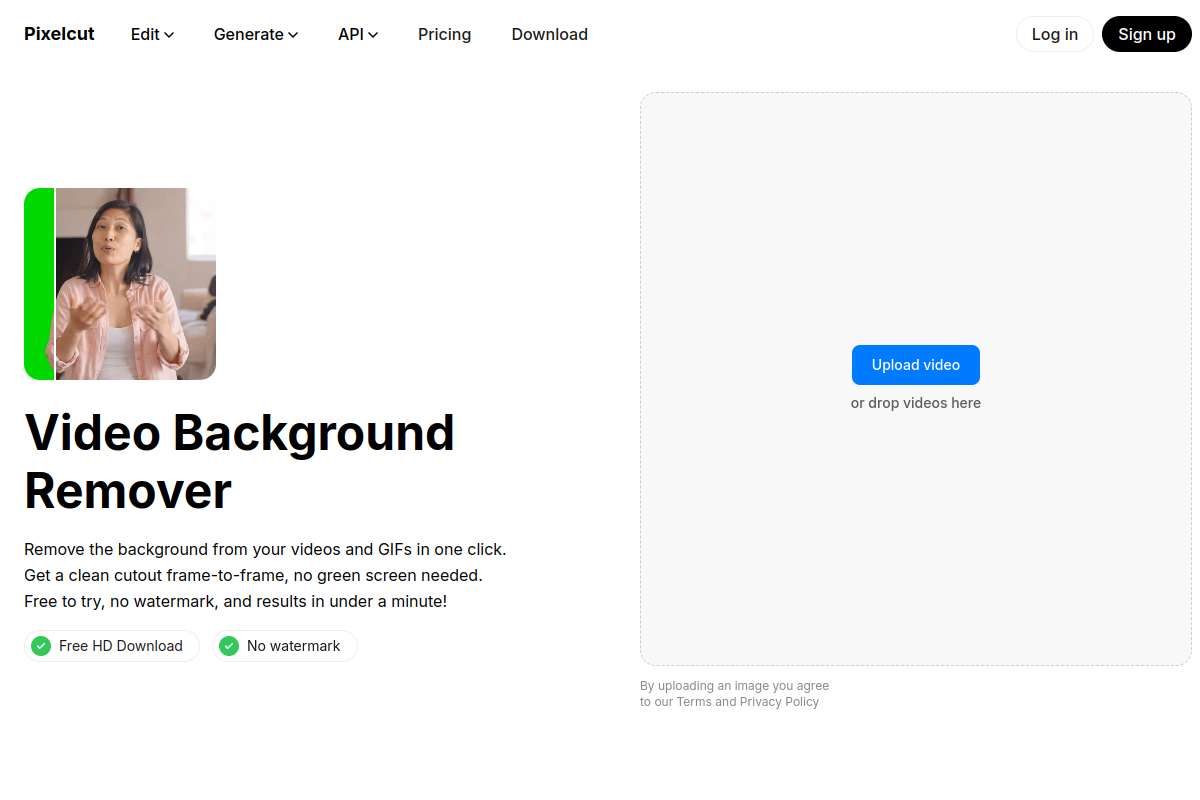
| Pixelcut | Up to 5s, 720p, 3 downloads, no watermark | No | Pro for 4K; every clip caps at 30s | Image + video tools |
| Canva | No free video BG removal | — | Pro-only feature | Full design suite |
| Adobe Express | No free video BG removal | — | Premium-only feature | Design + media editor |
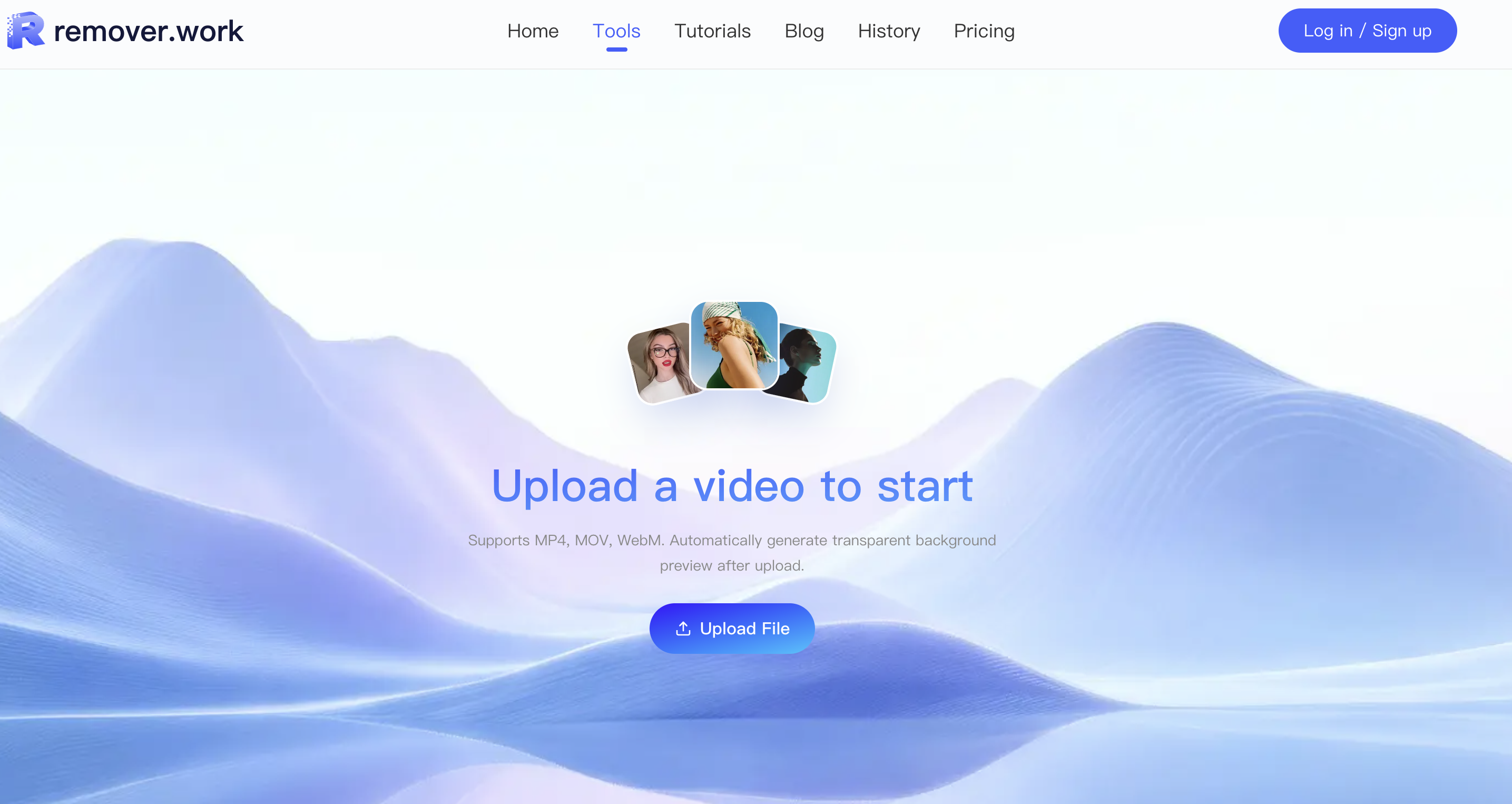
| remover.work | First 5s, full resolution, no watermark | No | Pay-as-you-go credits for the full clip length | All-in-one removal hub |
Checked in October 2026 against each vendor's own pricing and help pages.
Prices and limits shift constantly, so I always re-check the vendor's pricing page before committing — and you should too. But here's what each one actually felt like to use:
Runway has the highest-end model of the bunch, and on hard footage the cutout quality showed it. The catch is access and pricing: its background tool, Change Backdrop, is one of Runway's Apps, which need a Standard plan or above and cost 15 credits per second of video — and anything made on the Free plan carries a Runway watermark. For a job that's only background removal it felt like renting a film studio to remove a logo. Great if you're already living in Runway; overkill if you're not.

Kapwing is a capable full editor, but every free export carries a Kapwing watermark and caps at 720p. To get a clean 1080p/4K file you're on a Pro plan. Fine if you want the whole editor; frustrating if you just want the clip.
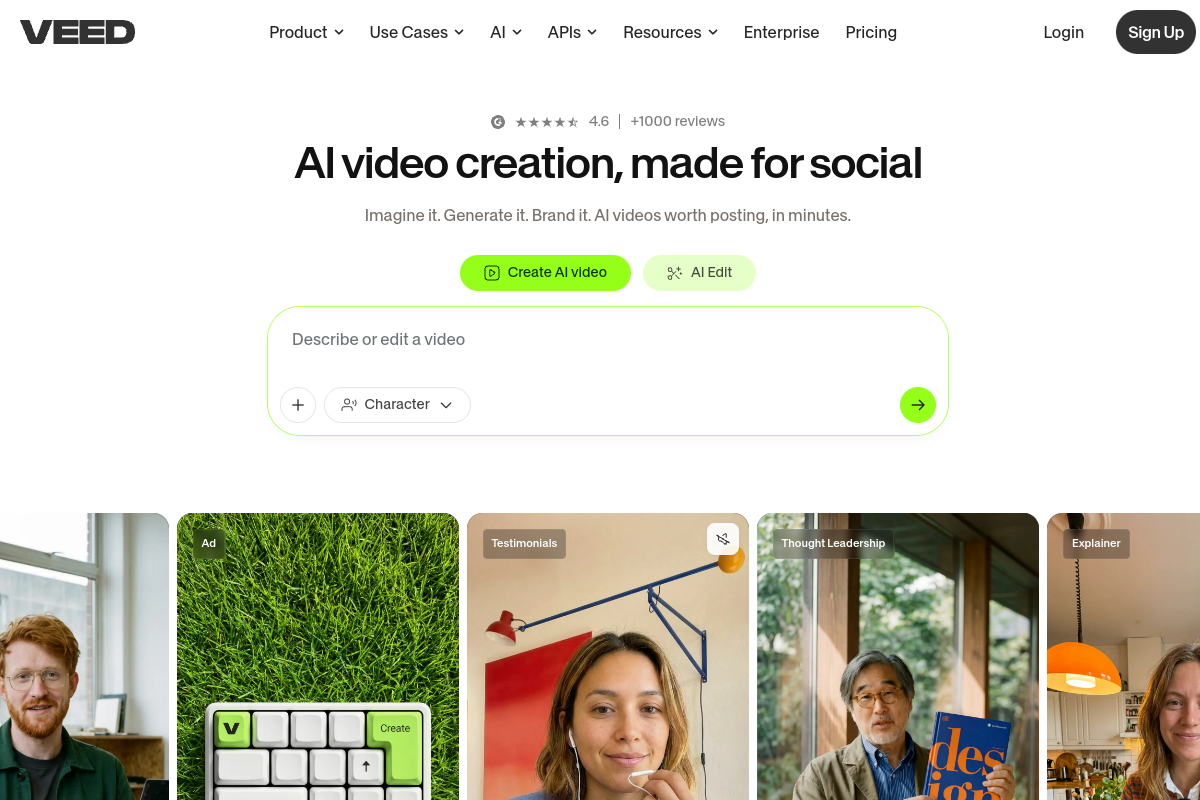
VEED is the same shape as Kapwing — solid editor, watermarked free exports, resolution gated. The free plan gets one try of its Background Remover; after that it's a paid plan. The upsell is persistent.
Pixelcut was the pleasant surprise on the free side: its Video Background Remover gives a short clip (up to five seconds) at 720p with no watermark, with three free downloads, which is genuinely useful for a quick check. Pro unlocks 4K, and no clip can run past 30 seconds.
Canva does video background removal now (it inherited Unscreen's tech), but it's a Pro-only feature — there's no free path to it. Quality is good on clean footage and weaker on low-light, fast-motion clips.

Adobe Express also gates video background removal behind Premium. Its image background removal is free and full-res, but video isn't.
The pattern held everywhere I looked: Kapwing and VEED stamp a watermark on free exports, Pixelcut caps the free clip to a few seconds, and Runway, Canva and Adobe Express gate video background removal behind a subscription entirely.
What actually frustrated me: paying before I could judge
The friction was never the cutout quality — it was the bait-and-switch at export. I'd process a clip, like the result on screen, then discover the only free version was watermarked across the middle or downscaled to 720p. To see whether the real output was clean, I had to pay first. I'd basically paid to find out whether it was worth paying for.
That's the part remover.work flips, and it's why I keep coming back to it:
- I can upload and process without signing up. I see the real result first.
- The free result is the first 5 seconds at full resolution — no watermark, no downscaling — so I'm judging real quality, not a degraded sample. (This matters: a watermarked 720p preview hides exactly the edge artifacts you're trying to check for.)
- I only log in at the download step, and only spend credits to process beyond the free 5 seconds.
- No subscription. Credits come in one-off packs and I use them as I go, so a one-off project doesn't sign me up for a monthly fee.
So the question I actually care about — "is this good enough?" — gets answered before I commit anything, not after.
What "just works" is actually running
The simple part is the experience — upload, preview, download. The reason it holds up on hard footage is the model underneath: remover.work runs a proprietary, state-of-the-art system built on diffusion transformers (DiT), the same family of generative architecture behind modern video-generation models, applied here to removal. For video specifically, that matters for two reasons:
- Temporal coherence. A DiT model reasons across frames rather than treating each one in isolation, so the cut-out edge stays stable instead of shimmering or flickering frame to frame — the exact failure mode that gives cheaper background removers away the moment you press play.
- Edge fidelity under motion. Diffusion-based segmentation holds onto fine detail — hair, soft edges, motion-blurred boundaries — where simpler masks go blocky or chew into the subject.
"Just works" isn't a lowered bar. It's a high-end model carrying the hard part so you don't have to think about it.
Resolution and duration: what actually changes the cost
When you do move past the free 5 seconds, two things drive the credit cost: the output resolution and the clip length. Higher resolution and longer clips cost more, which is the honest way to bill it — a 4K minute is genuinely more work than a 480p ten-second clip. The practical upshot is that I match the export resolution to where the clip is actually going. A talking-head for a social feed doesn't need 4K; a product hero for a landing page might. Picking the right resolution up front is the easiest way to keep credit spend sane.
How I remove a video background on remover.work
- I open the Video Background Removal tool and upload my clip (MP4 or MOV).
- I watch the preview — the subject gets cut from the background automatically, and I scrub through it in motion rather than judging a single still, because flicker and halos live between frames.
- If the free 5-second result looks right, I log in to download, or spend credits to process the full clip at my target resolution. The export carries an alpha channel, so I can drop it onto any new background in an edit.
No green screen, no install, no monthly plan. And when I need to clean text or a logo out of the same footage, it's in the same hub — I wrote up the all-in-one comparison for that, and the step-by-step lives in the video background removal tutorial.
FAQ
Do I really not need a green screen?
No. AI segmentation works on ordinary footage. A green screen still gives the cleanest possible key when conditions are perfect, but for the vast majority of clips, AI removal is good enough and far less hassle.
Will footage from my phone work?
Yes. Phone video is fine — the same rules apply (good separation, stable light, moderate motion cut cleanest).
How long can I process for free?
The free result is the first 5 seconds at full resolution. Beyond that you process the full length with credits.
Can I get 4K out?
Yes, with credits — higher resolution costs more, so I only choose 4K when the destination actually needs it.
What format is the export?
It includes an alpha channel for compositing, so you can place the subject over any background in your editor.