
This guide covers removing the background from a video clip — no green screen needed — using a preview-first flow. You can upload and preview without an account; you only log in when you download or run the full clip.
1. Upload the source video
Open the Video Background Removal tool and add your clip. MP4 and MOV are supported. The workspace keeps the first pass lightweight so you can inspect motion and framing before committing anything.
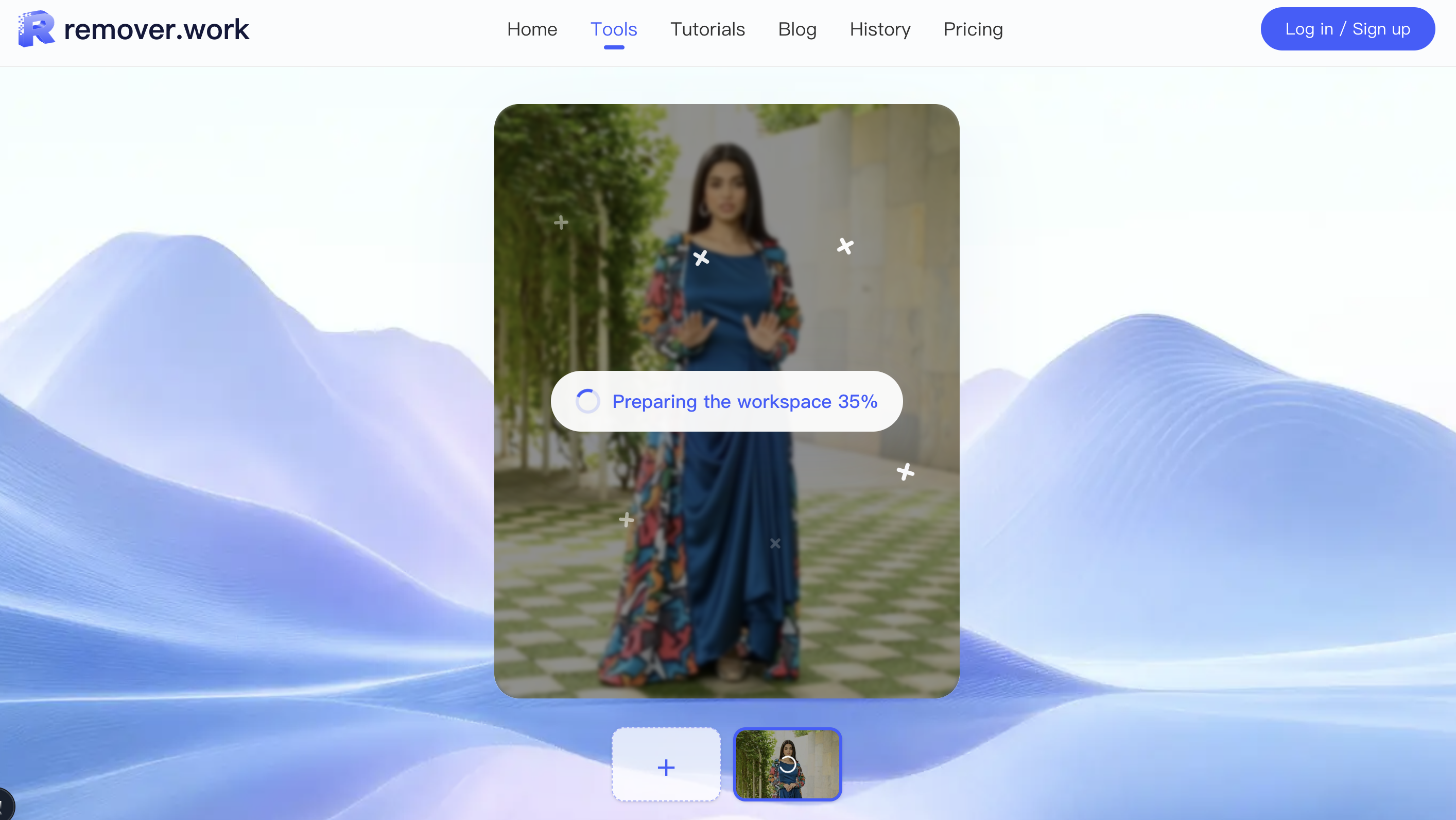
2. Choose the processing path
The free trial processes the first 5 seconds at full resolution — not a downscaled sample — so you can judge real quality.
- If your clip is 5 seconds or shorter, it processes free in full.
- If it's longer than 5 seconds, the toolbar (once you're logged in) offers two choices: Auto trim to 5 sec to stay free, or Use credits to process the full length. Credit cost scales with output resolution and duration.
- Not logged in and uploading a clip over 5 seconds? You'll be prompted to log in to continue.
3. Preview the cutout in motion
Check the cleaned result in motion, not just on a still frame. Confirm the subject stays intact across camera movement, lighting changes, and fast cuts — edge flicker and halos show up between frames, not within one. The cutout is produced by remover.work's proprietary, state-of-the-art model (built on diffusion transformers, DiT), which reasons across frames to keep the edge stable instead of shimmering — so a clean still usually means a clean clip.
4. Export the final
Verify the free preview first, then process and download the full clip with credits once quality is confirmed. The exported file includes an alpha channel, ready to composite onto a new background or a transparent layer.
For how this compares to other tools and when AI beats a green screen, see how to remove a video background and the all-in-one comparison.