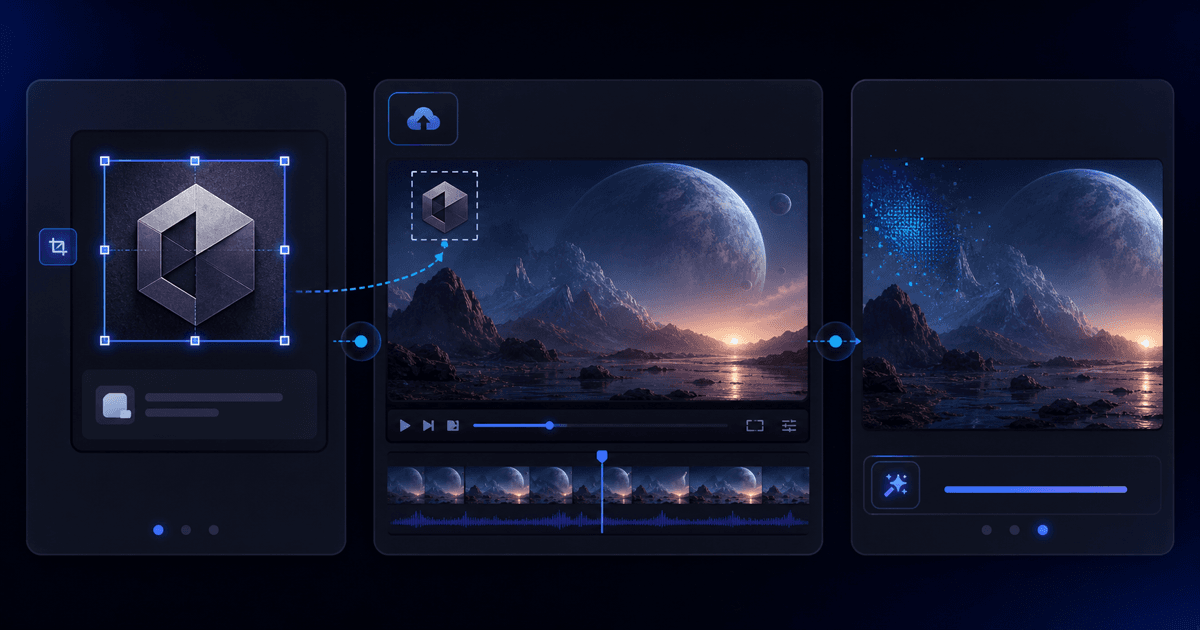
This is for a generation you made and own, where the generator stamped its logo into the corner. It clears the visible mark by rebuilding the background behind it. That is separate from invisible watermarks or provenance metadata, and it isn't a way to disguise AI content as something else.
1. Open the tool and upload your clip
Go to the watermark removal tool, or the page for your generator — Veo, Kling, Runway, Seedance, Pika, Luma, Hailuo, Vidu, Dreamina. They all run the same removal; the specific pages just carry copy tuned to that source. Upload your MP4 or MOV — no account needed to upload and preview.
2. Let it find the logo
You don't draw anything. The generator's logo is detected in the footage automatically and tracked across frames across common resolutions and aspect ratios. A small corner logo over a moving scene is usually the most favorable case, because nearby frames can reveal background detail.
3. Check the free preview in motion
Run the preview and watch it — the first 5 seconds process free at full resolution with no watermark added. Scrub the corner where the logo used to be and confirm it's reconstructed, not blurred: no soft patch, no smudge tracking the old mark, and it holds steady as the shot moves. A free tier that downscaled or stamped its own logo would tell you nothing; this shows the real result.
4. Export at full resolution
When the preview looks clean, log in and use credits to process and export the whole clip. Export at your source resolution — don't accept a 720p downgrade if you generated higher. There's no subscription; a one-off cleanup just spends credits.
If your generator isn't in the list, upload a picture of the mark instead with Remove Any Logo — see the tutorial. For the background on why inpainting beats blur, read how to remove a watermark from video, and for the per-generator rundown, this guide.